
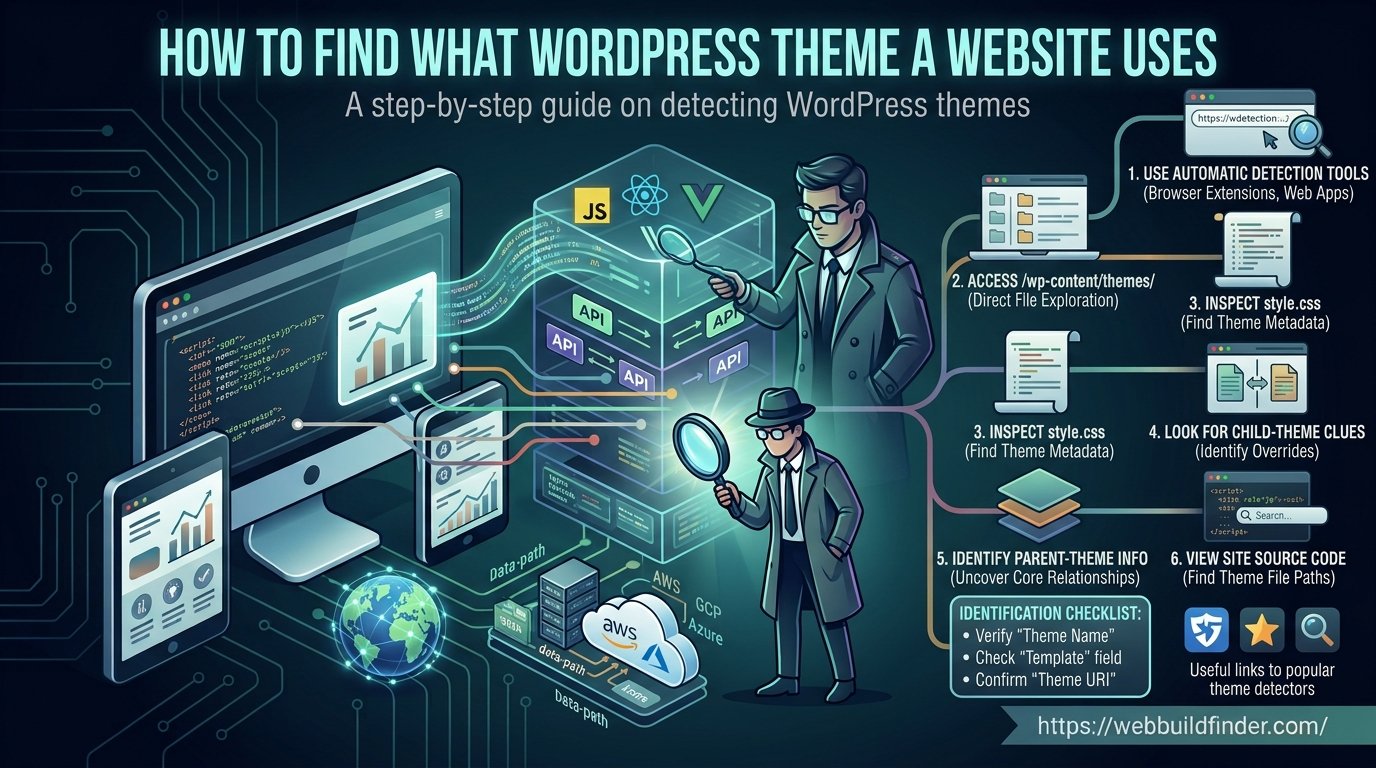
If you come across a WordPress website with a design you like, one of the first questions you may ask is:
“What WordPress theme is this website using?”
In many cases, the answer can be found without access to the site's WordPress dashboard.
WordPress themes often leave public clues in the HTML source, stylesheet URLs and theme files loaded by the browser. These clues can reveal the active theme folder, theme name, version, author and even whether the site is using a child theme.
However, theme detection is not always perfect.
Some websites use completely custom themes. Others rename theme folders, heavily modify commercial themes, combine a theme with a page builder, or optimize assets in ways that hide the original theme structure.
In this guide, we will go through the most reliable ways to identify the WordPress theme used by a website and explain when each method works.
You can also use WebBuildFinder to scan a public website and automatically look for WordPress theme and technology signals.
Method 1 — Detect the Theme Automatically
The quickest way to find a WordPress theme is to use a website technology detector that can identify WordPress-specific assets.
A WordPress theme detector typically looks for paths such as:
If the website publicly loads CSS, JavaScript, fonts or images from that directory, the theme folder can often be identified.
For example, you might see:
or:
That immediately gives you an important clue.
An automatic scanner can then try to inspect the theme's public style.css file and read the theme metadata from its header.
This is useful because it combines several manual steps into one report.
A tool such as WebBuildFinder can check whether a site appears to use WordPress and, when theme signals are exposed, report details such as:
- theme folder
- theme name
- theme version
- theme author
- parent-theme template
- visible WordPress plugins
- page builders
- other technologies around the WordPress installation
Automatic detection should still be treated as a starting point rather than absolute proof.
A custom or optimized WordPress site may not expose enough information to identify the theme confidently.
Method 2 — Inspect /wp-content/themes/
One of the most reliable manual methods is to inspect the website's HTML source or browser developer tools for WordPress theme paths.
WordPress themes are normally stored in:
WordPress's own documentation describes themes as being organized inside the wp-content/themes directory. WordPress Developer Resources
To check manually:
- Open the website.
- Right-click the page.
- Choose View Page Source.
- Search for:
You may find something like:
This suggests that the site is loading assets from a theme folder called:
The folder name is often the same as the theme's public slug.
Other examples might include:
However, the folder name alone is not always enough.
A developer may rename a custom theme folder to something like:
In that case, you know the active theme directory, but not necessarily whether it originated from another commercial theme.
Method 3 — Open style.css
Once you know the theme folder, the next useful step is to check its main stylesheet.
The conventional location is:
For example:
WordPress uses style.css as the main theme stylesheet and theme metadata file. The file contains a header that can identify the theme and other details. WordPress Developer Resources
You may see something like:
This is one of the most useful sources of theme information.
However, there are a few limitations.
The theme's style.css file may:
- be blocked
- be cached through a CDN
- contain minimal metadata
- be renamed or optimized
- expose only child-theme information
- not be loaded directly on the page
Block themes also rely heavily on theme.json for design configuration, so not all visual styling will necessarily live inside style.css. WordPress notes that modern block themes may handle much of their design through theme.json, even though style.css still carries theme information. WordPress Developer Resources
Understanding WordPress Theme Headers
The metadata at the top of style.css is called the theme header.
WordPress supports a number of standard header fields.
These fields can tell you much more than just the theme name.
Theme Name
The most important field is:
Example:
This identifies the human-readable theme name.
The folder might be:
while the theme name appears as:
For custom themes, you may instead see a company-specific name such as:
Version
Another useful field is:
For example:
WordPress supports theme version information in the stylesheet header. WordPress Developer Resources
Version information can be useful when researching a theme, but you should not assume it is always current.
A developer may forget to update the version number.
Caching layers may also serve older files temporarily.
For this reason, the version should be treated as the version publicly exposed by the theme file, not necessarily proof of the exact deployed code revision.
Author
The header may also include:
Example:
This can help identify the company or developer behind the theme.
The theme may also include:
which links to the developer's website.
For a custom theme, the author may be:
- a web agency
- an internal development team
- a freelance developer
- the website owner
- a white-label provider
This can provide useful context when researching how the site was built.
Template
The Template field is particularly important because it can indicate that the active theme is a child theme.
Example:
The value points to the parent theme's folder.
WordPress documentation specifies that the Template field must match the parent theme folder name exactly. WordPress Developer Resources
For example:
means:
- active theme: My Custom Child Theme
- parent theme: Astra
This is one of the best ways to distinguish a custom child theme from the underlying parent theme.
How to Detect Child Themes
A child theme allows developers to customize an existing WordPress theme without directly editing the parent theme.
This is important because changes made directly to a parent theme can be overwritten when that theme is updated.
WordPress describes child themes as a way to extend and customize a parent theme while preserving the ability to update the original theme. WordPress Developer Resources
A child theme may expose a path like:
Opening:
may show:
The important line is:
That tells you the parent theme.
Without checking the Template field, you might incorrectly conclude that:
is a completely independent theme.
In reality, much of the site's functionality and template structure may come from GeneratePress.
How to Identify the Parent Theme
The parent theme is usually identified through the child theme's Template header.
Suppose you find:
The active theme is:
but its parent is:
You can then try opening:
to inspect the parent theme metadata.
WordPress requires the Template value to match the parent theme's folder name. WordPress Developer Resources
This makes the field particularly useful for theme detection.
A technology report should ideally show both:
rather than reporting only one of them.
What If the Theme Is Custom?
Custom themes are very common on professional websites.
A custom theme may have been built:
- completely from scratch
- from a starter theme
- as a child theme
- from an existing commercial theme
- by an agency
- by an internal development team
You may find a folder such as:
with:
In this situation, there may be no public commercial theme to identify.
That is not a failed detection.
The correct conclusion may simply be:
The site appears to use a custom WordPress theme.
You should avoid trying to force every WordPress website into a known ThemeForest, WordPress.org or commercial theme name.
Custom themes can still reveal useful information such as:
- author
- version
- parent theme
- text domain
- framework dependencies
- page-builder integrations
Sometimes a custom theme is actually a child theme of a well-known parent.
That is why checking the Template field is so valuable.
How Page Builders Affect Theme Detection
Page builders make WordPress theme detection more complicated because they control much of the visible page design.
Popular page builders include:
- Elementor
- Elementor Pro
- Divi Builder
- Beaver Builder
- WPBakery
- Bricks
- Oxygen
- Gutenberg / block editor
A website may visually look like an Elementor website but still use:
as the underlying theme.
Another site might use:
A Divi site may use the Divi theme itself or may use a separate theme with a page-building plugin.
This distinction matters.
A theme controls the WordPress theme layer.
A page builder controls much of the content layout and visual composition.
So a technology report may legitimately show:
Each technology serves a different purpose.
When researching a site's design, it is therefore useful to identify both:
the active theme
and
the page builder.
Simply finding Elementor does not automatically tell you what theme the website uses.
Why WordPress Theme Detection Sometimes Fails
There are several reasons a theme may not be identifiable.
Theme assets may be optimized
Performance plugins and CDN services can combine, rename or proxy CSS and JavaScript.
Instead of seeing:
you might see a generated cache URL.
The theme folder may be renamed
Developers can rename a custom theme folder.
For example:
may provide no clue about the original theme.
The website may use a headless WordPress setup
In a headless architecture, WordPress may provide content through an API while a separate frontend is built using:
The public frontend may therefore expose almost no traditional WordPress theme assets.
Security tools may hide paths
Security plugins or custom configurations can obscure standard WordPress locations.
The theme may be custom
There may simply be no commercial theme to identify.
In all these situations, the correct result is:
Theme not publicly identifiable.
That is better than guessing.
WordPress Theme Detection Checklist
If you want to investigate manually, use this order:
- Confirm that the site appears to use WordPress.
- Search page source for:
- Identify the theme folder.
- Open:
- Look for:
- If
Templateexists, identify the parent theme. - Check whether a page builder is also present.
- Consider whether the theme is custom.
- Verify important findings using more than one signal.
This workflow will identify a large percentage of traditional WordPress themes.
Example Theme Analysis
Imagine you inspect a website and find:
Opening:
returns:
From this information, you can conclude:
Suppose you also find:
Then the broader architecture might be:
This is much more informative than simply saying:
The site uses GeneratePress.
How to Check a WordPress Theme With WebBuildFinder
You can perform all of these checks manually, but the process becomes repetitive when researching multiple websites.
WebBuildFinder checks public WordPress technology signals automatically.
When WordPress is identified, the scanner can look for:
- active theme folder
- theme name
- publicly exposed theme version
- theme author
- parent template
- text domain
- visible plugins
- page builders
- other frontend and infrastructure technologies
The tool uses publicly accessible website information only.
It does not log into WordPress or access the site's private admin dashboard.
That also means a theme may remain unknown if the website does not expose enough reliable public evidence.
Final Thoughts
Finding the WordPress theme used by a website is often easier than it first appears.
The most useful clues usually come from:
and:
The stylesheet header can reveal important information such as:
and the Template field is especially valuable when identifying child and parent themes.
However, a modern WordPress website may also use a page builder, custom child theme, caching system or headless frontend.
That means the visible design should never be assumed to come entirely from the theme itself.
For the most reliable result, combine multiple public signals and distinguish between:
- active theme
- parent theme
- child theme
- page builder
- custom theme
- WordPress plugins
If you want to check a site quickly, use the WebBuildFinder WordPress technology detector to identify the publicly visible theme, plugins and related website technologies in one report.