
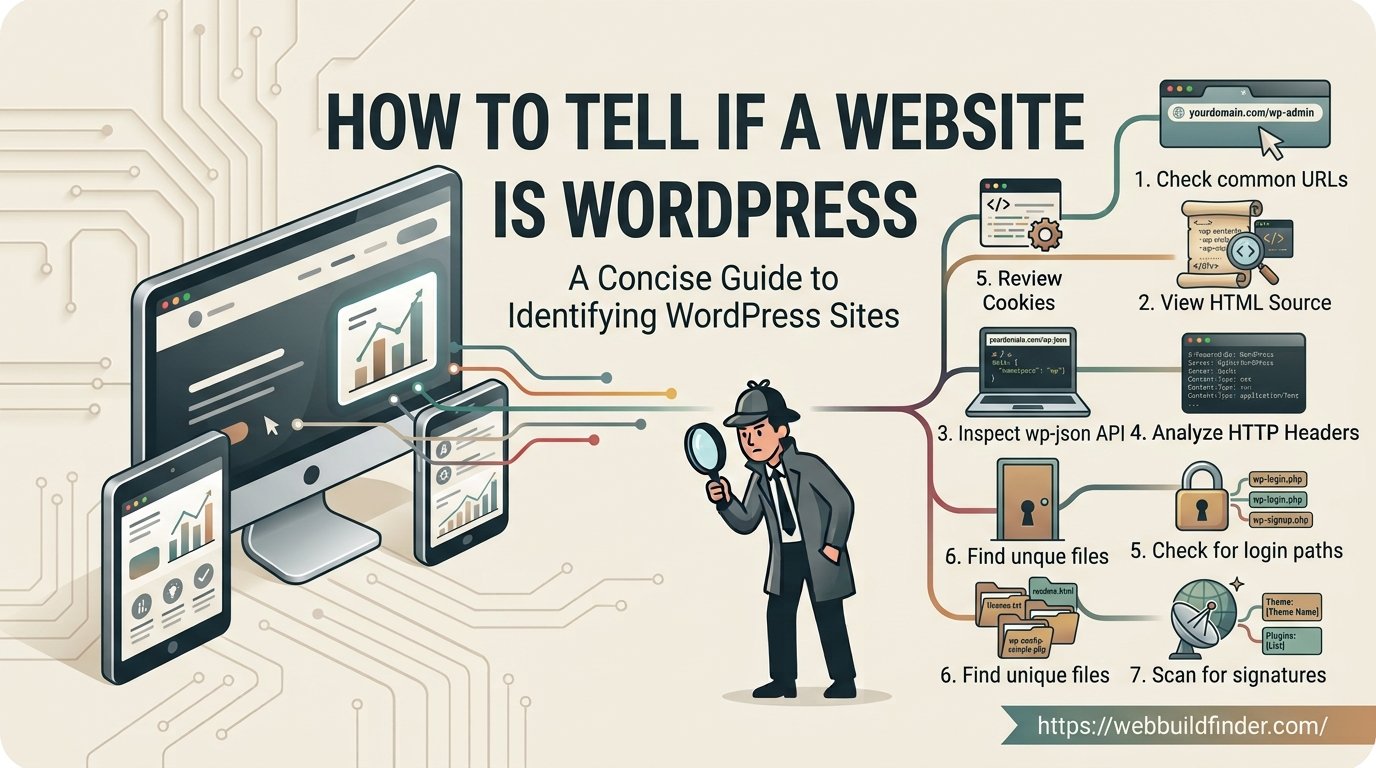
You visit a website, like the way it looks, and start wondering what it was built with.
If WordPress is one of your guesses, there are several surprisingly simple ways to check.
WordPress websites often leave recognizable clues in their source code, file paths, API endpoints, themes, plugins, and login URLs. Some of these clues can be found in seconds, while others require a little more investigation.
The important thing is not to rely on a single signal. Website owners can hide or modify many default WordPress paths, and headless WordPress installations may look completely different from traditional WordPress sites.
In this guide, you will learn how to tell if a website is WordPress using several manual methods, how to identify WordPress themes and plugins, why some WordPress sites are difficult to detect, and how to check a site automatically with WebBuildFinder.
How Can You Tell If a Website Uses WordPress?
The easiest way to tell if a website uses WordPress is to look for WordPress specific paths and files such as /wp-content/, /wp-includes/, /wp-json/, and /wp-login.php. You can also inspect the HTML source for WordPress themes, plugins, generator metadata, and other platform specific references.
If you would rather avoid checking these signals manually, you can use the WebBuildFinder website technology detector to scan the site for publicly detectable technologies.
Method 1: Look for /wp-content/
One of the quickest ways to identify a WordPress website is to look for the /wp-content/ directory.
WordPress normally stores themes, plugins, uploads, and other site files inside this directory.
You may find URLs similar to:
If several resources on a website are loading from /wp-content/, that is very strong evidence that the site uses WordPress.
How to Check for wp-content
Open the website in your browser, right click the page, and choose View Page Source.
Search the source code for:
You can usually search the page source using Ctrl F on Windows or Command F on macOS.
If you find references to themes, plugins, or uploads inside this directory, WordPress is almost certainly being used somewhere on the site.
Why This Method Is Not Always Enough
Some site owners change the default WordPress directory structure or use security tools that hide common WordPress paths.
A site can therefore use WordPress even when you cannot find wp-content anywhere in the visible source.
This is why it is useful to check several signals before making a final conclusion.
Method 2: Check /wp-includes/
Another useful WordPress fingerprint is the /wp-includes/ directory.
This directory contains many of the files WordPress needs to function, including JavaScript libraries, stylesheets, and other core resources.
You may see URLs similar to:
References to wp-includes provide another strong indication that the site runs WordPress.
Where to Look
You can find these references in:
- Page source
- Browser developer tools
- Network requests
- JavaScript file URLs
- CSS file URLs
Open your browser developer tools, select the Network tab, and reload the page. Search the requests for wp-includes.
If you find multiple WordPress core resources loading from that path, you have strong evidence that WordPress is involved.
Method 3: Inspect WordPress Generator Metadata
Some WordPress websites include generator metadata inside their HTML.
A typical example looks like this:
Older or less customized websites may even include the WordPress version number.
This is one of the easiest WordPress detection methods because the platform identifies itself directly.
How to Find the Generator Tag
Open the page source and search for:
or:
If the WordPress generator metadata is present, the result is straightforward.
Why Many Sites Do Not Show It
Many WordPress developers remove generator metadata.
This can be done manually, through a theme, or with security and optimization plugins.
The absence of generator metadata therefore does not mean the website is not WordPress.
Think of it as supporting evidence rather than something every WordPress site will expose.
Method 4: Check /wp-json/
WordPress includes a REST API that can expose public website data to applications and services.
The default API normally uses the following path:
Replace example.com with the domain you want to check.
If the URL returns structured WordPress API information, it is strong evidence that WordPress is being used.
What Is the WordPress REST API?
The REST API allows WordPress to communicate with other applications.
It can be used by:
- WordPress editors
- Mobile applications
- Headless websites
- JavaScript frontends
- Third party integrations
- Custom applications
A site does not need to expose every endpoint publicly, but the root /wp-json/ endpoint can still provide useful clues.
What If wp-json Does Not Work?
A site owner may restrict REST API access, change routing behavior, or block certain public requests.
Some security configurations can also prevent you from accessing the endpoint directly.
Once again, a missing endpoint does not prove that WordPress is absent.
Method 5: Check /wp-login.php
Traditional WordPress installations normally include a login page at:
You can also try:
If either address redirects you to a recognizable WordPress login page, the site is very likely running WordPress.
Why the WordPress Login Page May Be Hidden
Many website owners change or protect the default login URL.
Security plugins can replace the standard WordPress login address with a custom path.
Other sites may block access by IP address, require additional authentication, or route login requests through a separate system.
For that reason, getting a 404 page or another error at /wp-login.php does not necessarily mean that WordPress is not installed.
This method works best when combined with checks for wp-content, wp-includes, and the WordPress REST API.
Method 6: Identify WordPress Themes
If you already suspect that a website uses WordPress, the next question is often which theme it uses.
WordPress theme files are normally stored inside:
A stylesheet might load from a URL such as:
In this example, the folder name may suggest that the website uses the Astra theme.
Check the Theme Stylesheet
Traditional WordPress themes often contain a style.css file with theme information in its header.
Depending on how the website is configured, this information may reveal:
- Theme name
- Theme author
- Theme version
- Theme website
- Parent theme
Parent Themes and Child Themes
Theme detection can become more complicated when a website uses a child theme.
For example, you may see a custom theme directory while the actual design framework comes from another parent theme.
The site could also use a completely custom theme developed specifically for that business.
This means the folder name should be treated as a clue rather than automatic proof of the commercial theme being used.
Page Builders Can Change the Appearance
A WordPress website may use a theme together with a page builder such as Elementor, Beaver Builder, or another design system.
In that situation, the visible appearance of the site may have little resemblance to the original theme demo.
This is another reason theme detection works best when several pieces of evidence are combined.
Method 7: Identify WordPress Plugins
WordPress plugins are often surprisingly easy to identify because many of them load CSS, JavaScript, images, or other public assets.
Plugin files are normally stored under:
You may find a URL similar to:
The directory name can sometimes reveal exactly which plugin is installed.
Where to Look for Plugin Clues
Check:
- HTML source code
- JavaScript files
- CSS stylesheets
- Network requests
- Image URLs
- Inline scripts
If several assets load from the same plugin directory, there is a good chance that plugin is active on the page.
Why You Cannot Detect Every Plugin
Not every WordPress plugin loads public assets.
Some plugins work entirely inside the WordPress admin area or on the server.
Examples might include certain backup tools, database utilities, security tools, or administrative plugins.
If a plugin leaves no publicly visible footprint, an external detector cannot reliably identify it.
This means a WordPress plugin detector should never claim to provide a complete list of every installed plugin.
How WordPress Sites Hide Their Identity
WordPress is generally easy to detect, but website owners can make identification much more difficult.
This is often done for security, branding, or infrastructure reasons.
Changing Default Paths
Developers can modify or rewrite paths that normally contain:
- wp-content
- wp-admin
- wp-login.php
- Theme directories
- Plugin directories
This removes some of the easiest WordPress fingerprints.
Removing Generator Metadata
The WordPress generator tag can be removed with a small code change or security plugin.
This prevents the platform name and version from appearing directly in the HTML.
Disabling or Restricting the REST API
Website owners can restrict access to WordPress REST API endpoints.
The site may still use WordPress normally while /wp-json/ provides little or no useful public information.
Using a CDN or Reverse Proxy
Services such as Cloudflare can hide parts of the server infrastructure and change how resources are delivered.
Caching and optimization tools may also rename, combine, or rewrite CSS and JavaScript files.
Custom Themes and Plugins
A heavily customized WordPress website may not use recognizable commercial themes or plugin names.
Files may use generic or company specific directory names that reveal very little about the actual software.
This is why WordPress detection should be based on multiple independent signals whenever possible.
WordPress vs Headless WordPress
Traditional WordPress websites use WordPress for both content management and page rendering.
Headless WordPress works differently.
With a headless setup, WordPress manages the content in the backend, while another framework handles the frontend presentation.
For example, a website could use:
- WordPress with Next.js
- WordPress with React
- WordPress with Vue.js
- WordPress with Nuxt
Visitors may never receive normal WordPress theme files.
Instead, the frontend application requests content from WordPress through an API.
Why Headless WordPress Is Harder to Detect
A headless WordPress website may not contain obvious wp-content or wp-includes references on the frontend.
The WordPress installation might even run on a completely different subdomain.
Possible clues include:
- Requests to WordPress REST API endpoints
- Requests to WordPress GraphQL endpoints
- Media files served from a WordPress domain
- API responses containing WordPress structures
- References to WordPress in application code
This means a site can be powered by WordPress even when the public frontend looks like a standard React or Next.js application.
CMS and Frontend Are Not the Same Thing
This distinction is important when researching a website's technology stack.
A technology detector might correctly identify Next.js on the frontend while WordPress operates quietly as the content management system behind it.
Both results can therefore be correct.
How to Verify That a Website Really Uses WordPress
If you need a reliable answer, avoid relying on one clue.
Instead, look for several independent WordPress indicators.
For example:
- wp-content appears in asset URLs
- wp-includes appears in JavaScript or CSS requests
- wp-json responds with WordPress API information
- A WordPress theme directory is visible
- WordPress plugin directories appear in the source
- The default WordPress login page is accessible
If you find several of these signals together, you can be much more confident that WordPress powers the website.
This also helps reduce false positives caused by old files, third party widgets, cached assets, or migrated websites.
Test the Website With WebBuildFinder
Checking all of these methods manually is useful when you want to understand how WordPress detection works.
It can become time consuming when you need to investigate several websites.
WebBuildFinder is designed to make the first stage of that research faster.
Enter the website URL into the WebBuildFinder website technology checker and scan the public technology signals.
Depending on what the website exposes, the scan may help identify:
- WordPress
- WordPress themes
- WordPress plugins
- Frontend frameworks
- JavaScript libraries
- Analytics tools
- Marketing technologies
- CDN providers
- Security tools
- Hosting infrastructure
If WordPress is detected, you can then use the manual techniques in this guide to verify the result or investigate the website more deeply.
Check if a website uses WordPress with WebBuildFinder.
Frequently Asked Questions
How can I check if a website is WordPress?
Look for WordPress specific paths such as /wp-content/, /wp-includes/, /wp-json/, and /wp-login.php. You can also inspect page source, themes, plugins, and generator metadata or use a website technology detector.
Does every WordPress website have wp-content?
WordPress uses a content directory by default, but developers can modify public paths or rewrite URLs. A website may therefore use WordPress even when the normal /wp-content/ path is not visible.
Can I detect which WordPress theme a website uses?
Sometimes. Theme assets often load from /wp-content/themes/, which may reveal the theme directory name. Custom themes, child themes, renamed directories, and optimization tools can make theme detection more difficult.
Can I see every WordPress plugin installed on a website?
No. Only plugins that expose public files, scripts, styles, API endpoints, or other detectable signals can usually be identified. Plugins working entirely on the server or inside the admin area may remain hidden.
Can a WordPress website hide that it uses WordPress?
Yes. Developers can hide or modify common WordPress paths, remove generator metadata, protect the login page, restrict REST API access, and use caching or security tools. These changes make detection harder but do not necessarily make it impossible.
Can a Next.js website also use WordPress?
Yes. In a headless WordPress setup, WordPress can manage the content while Next.js or another frontend framework displays the website. In that situation, both WordPress and Next.js are part of the technology stack.
Final Thoughts
There is no single WordPress detection method that works for every website.
For many sites, finding wp-content or wp-includes is enough to provide a clear answer. Other websites require deeper investigation through REST API endpoints, themes, plugins, network requests, and login paths.
Headless WordPress and security hardened websites can be considerably harder to recognize because many familiar WordPress fingerprints may be hidden.
The most reliable approach is therefore to combine several signals rather than depending on one test.
If you want a quick starting point, run the domain through WebBuildFinder first and then use the